Let me introduce myself. My name is Bart Jenkins and I’ve been using UML tools since about 1997 when I first learned Rational Rose while as a consultant for an Object Oriented Database company named Object Design, Inc. (now Progress Software). I’ve been using IBM Rational’s Rhapsody UML modeling tool since 2005 (before IBM bought Rational) and so feel pretty comfortable with it. I’ve spent the vast majority of my time with these tools as a “tool smith”–that is, writing scripts to enumerate the API of the UML tool to make it do things it doesn’t do out of the box. This blog is an attempt to capture my ideas in this space. If you want to know more about me in general, you can read more at LinkedIn at: https://www.linkedin.com/in/bartjenkins/.
Good company in a journey makes the way seem shorter. — Izaak Walton
That you are very familiar with how to create models with Rhapsody.
That you know how to code in Java (and, even better, Scala)
That you have read through and maybe attempted the creation of a Java Plugin for Rhapsody.
Back in 2006, there was really one way to make a plugin for Rhapsody. You had to use Visual Basic for Applications. That changed when the makers of VB dropped support for all applications except for Microsoft ones. The only alternative was a Java API. But with the support of plugins written in Java meant that ANY JVM language could (theoretically) be supported. By 2014, I was sick of the bloated boilerplate of Java and was looking for a better alternative. That’s when I stumbled upon Scala and the excellent Scala Programming course series available on Coursera, taught by the designer of the language, Martin Odersky.
A Windows 10 or 11 machine with Rhapsody 9 or Rhapsody 9.0.x installed on your system
A friendly, modern Java JDK. I am working with the Open JDK from the Eclipse foundation, named “Temurin”. The version I will use in these posts is JDK/JRE v 17. You can find it at: https://adoptium.net/temurin/archive/?version=17. If you do not have a JVM environment installed, one can be installed in the next step
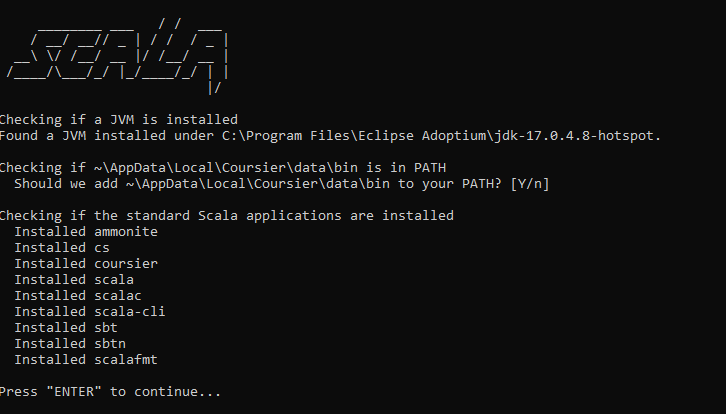
The courier site will provide a download of a zip file that contains a binary executable that, when executed, will attempt to locate any existing JVM installations and then proceed to install a JVM if none is found and then continue on and install the other useful Scala development tools.
Testing the installation
You should check to see that these tools are now available on your path. Let’s see if Coursier is available (cs) by typing: “cs version”. If all goes well you should get an output like “2.1.8”. If not, check your PATH to be sure it does indeed include the path to all of the above utilities.
Another useful tool is “Ammonite”. This is a REPL (Read-Eval-Print-Loop) utility for the Scala language. Let’s see how we might use this to test a connection to a Rhapsody model.
Find you way to the examples folder in the IBM Rhapsody installed folder. For me, this is located at:
C:\Program Files\IBM\Rhapsody\9.0\Samples
Let’s load the “Class Dumper” model and see if we can connect to it via Scala using the Ammonite utility
cd C:\Program Files\IBM\Rhapsody\9.0\Samples\JavaApi\ClassDumper
double click on the “ClassDumper.rpy” file. This should launch Rhapsody and load the model into Rhapsody. The model should complain that it is “read only”. That is ok.
Open up a CMD window (terminal window)
type “amm” and hit <Enter>
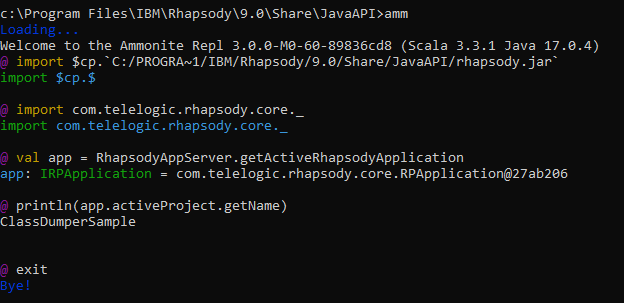
Ammonite should launch and present you with a simple “@” prompt awaiting input. Let’s point it to the Rhapsody Java API jar file and try to talk to our model. Type the following commands hitting the ENTER key at the end of each:
val app = RhapsodyAppServer.getActiveRhapsodyApplication
println(app.activeProject.getName)
exit
If all went well, you should have a screen session that looks something like the following:
Now let’s try creating a proper Scala project, compile it and see if it can connect to our loaded model. We will use sbt’s ability to create new projects from templates. We will use the “Scala-seed” template.
Open a terminal window
type: sbt new scala/scala-seed.g8
When asked for a project name, type “ClassDumper”
If you get a directory listing (dir *) you should see a new folder under your current location titled “classdumper”. Let’s have a look at that:
If you “cd” into the “classdumper” folder, you will several files and folders:
build.sbt
project/
src/
.gitignore
The src/ sub-tree will contain all of your source files for both regular execution and testing. The build.sbt file is a configuration file that tells the Simple Build Tool (sbt) what libraries are needed, where to find source files etc. It is like Maven’s POM file. Let’s try to compile this…
From the ./classdumper folder, type:
sbt run
You should see sbt launch, read your build.sbt file and proceed to download any needed libraries and cache them prior to running your application. In the end, you should see the familiar “hello” string print out. Here is a sample of output when I run “sbt run” on my machine:
C:\Users\bwj\Documents\src\playground\scala\classdumper>sbt run
[info] [launcher] getting org.scala-sbt sbt 1.9.7  (this may take some time)...
[info] [launcher] getting Scala 2.12.18 (for sbt)...
[info] welcome to sbt 1.9.7 (Eclipse Adoptium Java 17.0.4)
[info] loading project definition from C:\Users\bwj\Documents\src\playground\scala\classdumper\project
[info] Updating
https://repo1.maven.org/maven2/org/scalameta/semanticdb-scalac_2.12.18/4.7.8/semanticdb-scalac_2.12.18-4.7.8.pom
  100.0% [##########] 3.0 KiB (16.0 KiB / s)
[info] Resolved  dependencies
[info] Fetching artifacts of
https://repo1.maven.org/maven2/org/scalameta/semanticdb-scalac_2.12.18/4.7.8/semanticdb-scalac_2.12.18-4.7.8.jar
  100.0% [##########] 15.3 MiB (23.9 MiB / s)
[info] Fetched artifacts of
[info] compiling 1 Scala source to C:\Users\bwj\Documents\src\playground\scala\classdumper\project\target\scala-2.12\sbt-1.0\classes ...
https://repo1.maven.org/maven2/org/scala-sbt/compiler-bridge_2.12/1.9.5/compiler-bridge_2.12-1.9.5.pom
  100.0% [##########] 2.7 KiB (85.4 KiB / s)
https://repo1.maven.org/maven2/org/scala-sbt/compiler-interface/1.9.5/compiler-interface-1.9.5.pom
  100.0% [##########] 2.9 KiB (94.5 KiB / s)
https://repo1.maven.org/maven2/org/scala-sbt/compiler-bridge_2.12/1.9.5/compiler-bridge_2.12-1.9.5-sources.jar
  100.0% [##########] 53.9 KiB (1.3 MiB / s)
https://repo1.maven.org/maven2/org/scala-sbt/util-interface/1.9.4/util-interface-1.9.4.jar
  100.0% [##########] 4.3 KiB (56.9 KiB / s)
[info] Non-compiled module 'compiler-bridge_2.12' for Scala 2.12.18. Compiling...
[info]   Compilation completed in 26.686s.
[info] loading settings for project root from build.sbt ...
[info] set current project to ClassDumper (in build file:/C:/Users/bwj/Documents/src/playground/scala/classdumper/)
[info] Updating
https://repo1.maven.org/maven2/org/scala-lang/scala2-sbt-bridge/2.13.12/scala2-sbt-bridge-2.13.12.pom
  100.0% [##########] 1.9 KiB (13.0 KiB / s)
[info] Resolved  dependencies
[info] Fetching artifacts of
https://repo1.maven.org/maven2/org/scala-lang/scala2-sbt-bridge/2.13.12/scala2-sbt-bridge-2.13.12.jar
  100.0% [##########] 262.7 KiB (4.1 MiB / s)
[info] Fetched artifacts of
[info] Updating
https://repo1.maven.org/maven2/org/scalameta/semanticdb-scalac_2.13.12/4.7.8/semanticdb-scalac_2.13.12-4.7.8.pom
  100.0% [##########] 3.0 KiB (90.9 KiB / s)
[info] Resolved  dependencies
[info] Fetching artifacts of
https://repo1.maven.org/maven2/org/scalameta/semanticdb-scalac_2.13.12/4.7.8/semanticdb-scalac_2.13.12-4.7.8.jar
  100.0% [##########] 16.3 MiB (29.0 MiB / s)
[info] Fetched artifacts of
[info] compiling 1 Scala source to C:\Users\bwj\Documents\src\playground\scala\classdumper\target\scala-2.13\classes ...
[info] running example.Hello
hello
[success] Total time: 7 s, completed Dec 8, 2023, 2:06:00 PM

C:\Users\bwj\Documents\src\playground\scala\classdumper>
If you run “sbt run” again, you will see NO downloads and a much shorter list of output since all needed libraries have been cached and now just be consulted to run your small program.
Now, let’s hack this sample and change it to make it talk to our Rhapsody model:
If you dive down into /classdumper/src/main/scala/example, you will see the Hello.scala source file. Let’s edit that to make it interoperate with our Rhapsody model.
Edit the Hello.scala file. It looks like this:
package example

object Hello extends Greeting with App {
  println(greeting)
}

trait Greeting {
  lazy val greeting: String = "hello"
}
Let’s change it to connect with Rhapsody:
package example
import com.telelogic.rhapsody.core._

object Main extends App {
  val app = RhapsodyAppServer.getActiveRhapsodyApplication
  println(s"The currently loaded Rhapsody model is named: ${app.activeProject.getName}")
}
Save and exit Notepad and let’s get back to the root folder of our little project, /classdumper
Now we need to point our configuration file, build.sbt to the location of the Rhapsody Java API jar file. You will need to edit the “build.sbt” file. The default as provided by the template looks like the following:
import Dependencies._

ThisBuild / scalaVersion     := "2.13.12"
ThisBuild / version          := "0.1.0-SNAPSHOT"
ThisBuild / organization     := "com.example"
ThisBuild / organizationName := "example"

lazy val root = (project in file("."))
  .settings(
    name := "ClassDumper",
    libraryDependencies += munit % Test
  )
We need edit this file to add the location of the Rhapsody.jar file. Edit your build.sbt file to look like the following:
import Dependencies._

ThisBuild / scalaVersion     := "2.13.12"
ThisBuild / version          := "0.1.0-SNAPSHOT"
ThisBuild / organization     := "com.example"
ThisBuild / organizationName := "example"

lazy val root = (project in file("."))
  .settings(
    name := "ClassDumper",
    libraryDependencies +=  libraryDependencies += "com.ibm" % "rhapsody" % "9.0" from "file:///C:/PROGRA~1/IBM/Rational/Rhapsody/9.0/Share/JavaApi/rhapsody.jar",
    libraryDependencies += munit % Test
  )
(Note: If you have a later version of Rhapsody installed in a slightly different location, be sure to change the “9.0” portions above to “9.0.2” or whatever your folder location is named.
From the /classdumper directory, type “sbt run” again. Hopefully, you will see the application spit out “The currently loaded Rhapsody model is named: ClassDumperSample”
IDE
You don’t NEED an IDE to code, but it helps. You could write all of your Scala code with just Notepad or Notepad++, but for this blog, I will use “Visual Studio Code” from Microsoft. One source with instructions on how to install Visual Studio Code for Scala development can be found at: https://www.geeksforgeeks.org/how-to-install-scala-with-vscode/
That’s all for now. We will expand on this and start leveraging Scala’s functional programming capabilities to make creation of applications that can interrogate and work with our models a more pleasant experience.

 Waxing Rhapsodic